


In an increasingly digital world, the ability to capture on-screen activity with clarity and ease has become more essential than ever. Whether you’re a content creator compiling engaging tutorials, a professional archiving important online meetings, a gamer sharing epic triumphs, or simply someone looking to save a favorite webinar, the demand for reliable and high-quality screen recording software is universal. This is precisely where iTop Screen Recorder for Windows steps in, transforming screen capture into an effortless and enjoyable experience while ensuring every pixel and every sound is preserved in its pristine quality.
What is iTop Screen Recorder for Windows?
iTop Screen Recorder for Windows is a robust and intuitive screen recording software designed to provide a seamless capture experience for every user. It is a comprehensive toolkit engineered to meet a wide array of recording needs. Beyond just video, it offers sophisticated audio capture capabilities, allowing for simultaneous recording of system sound and microphone input—a crucial feature for creating voiceovers, podcasts or reaction videos. It stands as a reliable solution for anyone seeking to preserve, share, or analyze on-screen content in high fidelity.
Product Features

iTop Screen Recorder for Windows is an intuitive and powerful tool that makes capturing your PC screen effortless. Designed for both personal and business use, it integrates versatile modes to help you create professional videos in just a few clicks.
- Record Any Screen with Flexible Options: Flexibility is at the core of iTop Screen Recorder. You can capture the full screen, a specific window, or a custom region with ease. The recorder supports audio and webcam integration, making it ideal for tutorials, presentations, or demonstrations. A device recording mode even lets you mirror and record iPhone or Android screens directly on your PC while maintaining high quality.
- Record Webcam with Virtual Background: Creating professional lecture or presentation videos is simple with webcam recording. You can blur, remove, or replace your background to reduce distractions and protect privacy. The auto‑scroll teleprompter helps you deliver scripts smoothly, while customization options like flipping, rotating, resizing, and repositioning the webcam feed add polish to your recordings.
- Record Audio with AI Voice Changer: Audio capture is seamless, whether you’re saving streaming music from platforms like YouTube or Spotify, or recording narration through a microphone. The AI voice changer offers 10+ filters, including robotic, minions, and young female voices, perfect for podcasts or audiobooks. A built-in denoiser removes background noise and microphone echo, ensuring crisp, professional sound quality.
- Record Gameplay with No Lags or FPS Drops: Gamers will appreciate the smooth performance powered by hardware acceleration from NVIDIA, AMD, and Intel. Capture gameplay clips at 4K or 1080p without lag or dropped frames. The recorder also supports simultaneous screen, audio, and webcam recording, making it perfect for creating engaging gaming content.
- Editing and Annotation Tools: Enhance your recordings with text, shapes, arrows, magnifiers, and spotlights. Multiple video and audio tracks can be added, edited, or removed easily. You can insert subtitles, stickers, images, and background music, or apply filters, transitions, and special effects to make your videos more engaging.
- Screenshots and Image Editing: Capture screenshots of any region, full screen, or active window in formats like JPG, PNG, WEBP, BMP, and TIF. Use frames, circles, and lines to mark important content, or export directly to your clipboard for instant sharing. The AI‑powered background remover and clarity enhancer fix blurry visuals and create transparent images for editing.
- Performance and Compression: Ability to reduce video file sizes by 30% to 70% without losing quality. GPU acceleration and low CPU usage ensure smooth recording and editing, while batch compression saves time for larger projects.
How to Use iTop Screen Recorder for Windows
Utilizing iTop Screen Recorder for Windows is straightforward and designed to be accessible even for first-time users. Here’s a step-by-step guide to get you started:
- Download and Install: Begin by downloading the latest version of iTop Screen Recorder for Windows from its official website.
- Launch the Application: Once installed, launch iTop Screen Recorder. You’ll be greeted by its intuitive main interface.
- Select Your Recording Area: Before you hit record, decide what you want to capture. You can choose “Full Screen” to record everything on your monitor, “Select Region” to drag and define a custom area, or “Select Window” to pick a specific application window.
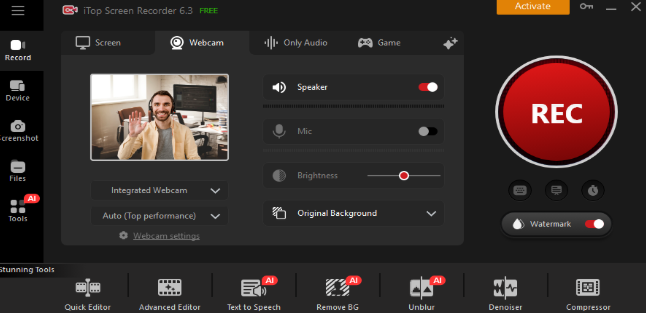
- Configure Audio Settings: Look for the speaker and microphone icons. Toggle the “Speaker” on to capture system audio.. Toggle the “Mic” on if you wish to record your own voice commentary.
- Optional Webcam and Mouse: If you want to include your face, toggle the “Webcam” on. A small preview will appear, which you can drag and resize. The “Mouse” option allows you to highlight mouse clicks and cursor movements, which is particularly useful for tutorials.
- Start Recording: Once everything is set, click the prominent red “REC” button. During recording, a small control bar will usually appear, allowing you to pause, stop, or take a screenshot. You can also use hotkeys (e.g., Ctrl + F9 to start/stop, Ctrl + F10 to pause/resume and Ctrl + F11 to take a screenshot) which can be customized in settings.
- Stop and Access Recordings: When you’re finished, click the “Stop” button on the control bar or press your designated hotkey.
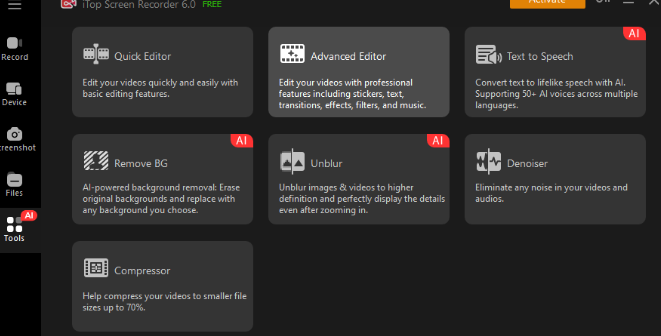
- Edit and Share: From the “Files” list, you can preview your video, open the built-in editor to trim it, or easily share it to various platforms.
Who Should Use the Product
Anyone (i.e. educators, gamers, professionals and content creators) seeking high-quality screen capture with flexibility and easy-to-use screen capture for Windows can use the product.
Conclusion
iTop Screen Recorder for Windows is more than just a utility—it’s a creative partner. It distinguishes itself through its blend of professional-grade features and remarkable ease of use. It successfully bridges the gap between powerful functionality and user-friendliness, making high-quality video capture accessible to everyone. Whether you are creating/archiving/sharing, iTop Screen Recorder ensures that your digital experiences are preserved with crystal-clear fidelity, transforming your interactions with your screen into lasting, professional-quality content.
